
Wallet & money tutorial
How to buy crypto with Jupiter’s on-ramp
Buy SOL or USDC with a supported payment method through Jupiter’s Deposit flow. Compare the live on-ramp offers, review the provider’s quote, then complete payment with that provider.[1]
- Best for
- A first crypto purchase sent directly to your Solana wallet.
- You'll need
- A Solana wallet, such as Jupiter Wallet, Jupiter Mobile, Phantom or Solflare
- A supported payment method in your region
- Cost
- Jupiter adds no fee; the selected provider sets its price and fees
From provider quote to wallet
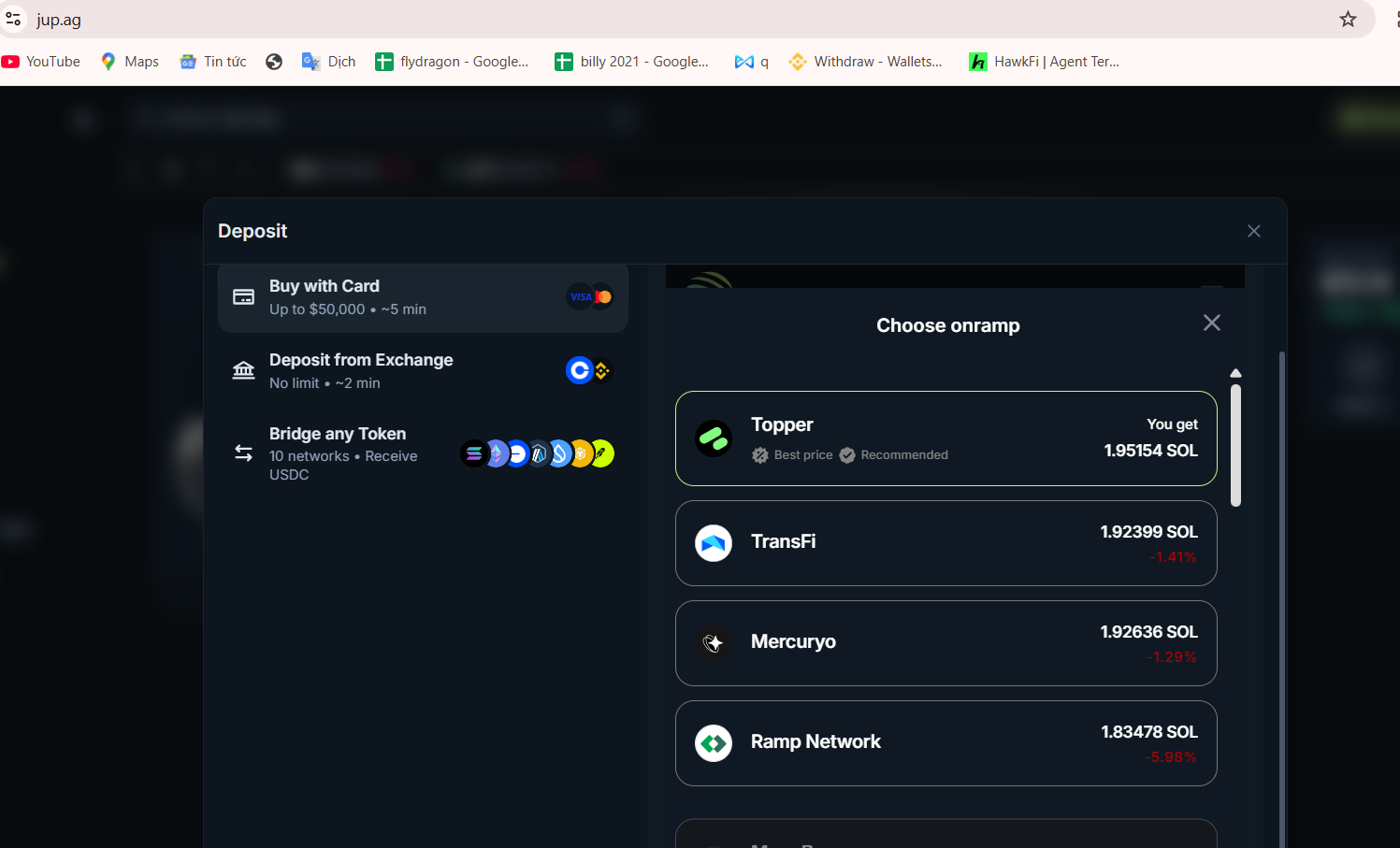
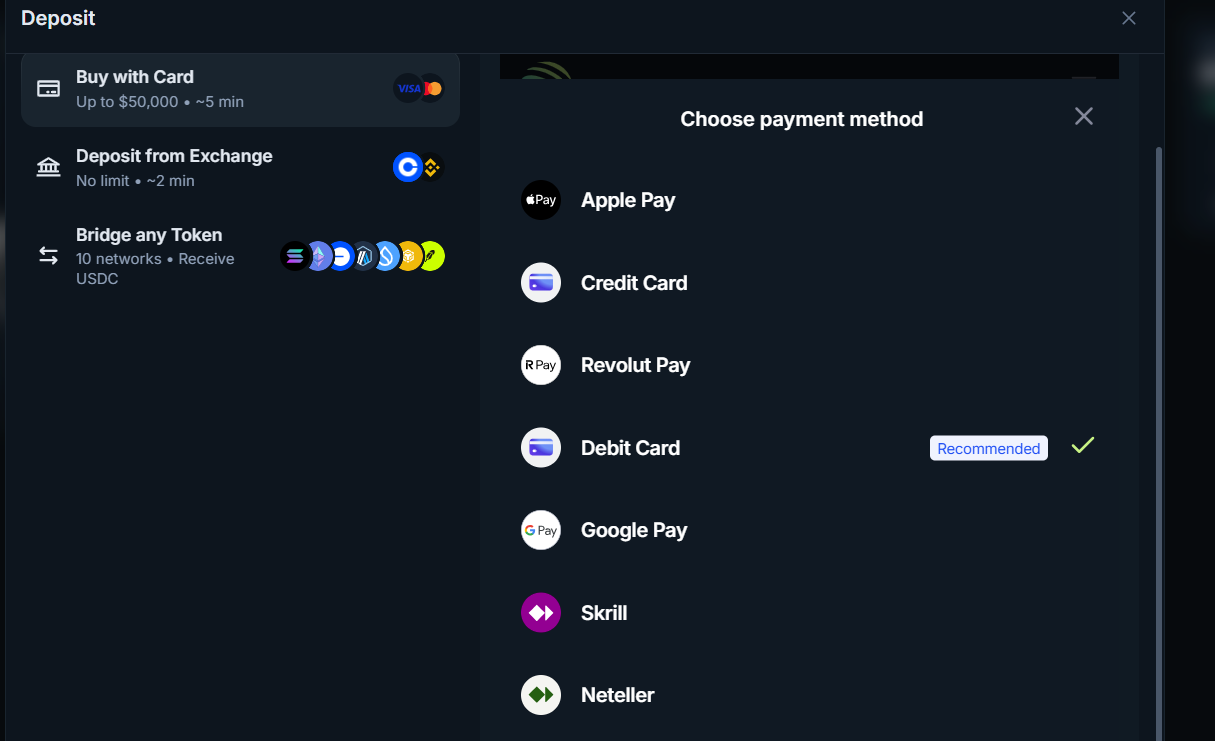
- Country and payment options vary
- Provider sets its fees
- Never share your recovery phrase
Step by step
Open the on-ramp
Visit jup.ag/deposit/onramp, or open Deposit on Jupiter and choose Buy with Card. Connect the Solana wallet that should receive the crypto.
Enter your purchase
Choose the fiat currency and amount you want to spend, then choose SOL or USDC as the asset to receive.
Compare provider offers
Review the available providers and compare the amount you will receive, exchange rate, payment methods and provider fees. Offers change with your location and purchase details.
Choose a payment method
Select a method offered for your region, such as a card, Apple Pay, Google Pay or another listed option. The choices shown in the screenshots are examples, not a promise that every option is available to everyone.
Complete provider checkout
Continue to the selected provider. Check the final amount and terms there; the provider may ask for identity verification or redirect you to finish payment.
Check your wallet
After the provider processes the order, confirm that the SOL or USDC arrived at the connected wallet address. If the order is delayed, contact the payment provider shown in the order.
Good to know
- Jupiter's card purchase flow is powered by Onramper, which compares providers in real time. The provider processes the payment and any required identity checks.[1]
- Payment methods and supported countries vary by provider. If no offer appears for your location, use another supported funding route such as a Solana exchange withdrawal.[1]
- Jupiter does not add an extra fee to the purchase. The provider's quote includes its own pricing and fees; check the final checkout amount before paying.[1]
- The provider is responsible for payment status and payment support. Never share your wallet recovery phrase with a provider or anyone offering help.[1]
Sources
- Buy with a card ↗docs.jup.ag/user-docs/onramp/deposit/buy-crypto
- Deposit Overview ↗docs.jup.ag/user-docs/onramp/deposit
Checked against Jupiter's documentation on 27 Sep 2026. Products change; the linked pages are the source of truth.